Showing posts with label Z80. Show all posts

Thursday, April 1, 2021

Z80 Programming Sample II

In the previous post, we checked out Z80 Programming Sample for the Sega Master System: an 8-bit video game console based on the Z80 chip. Here we used WLA-DX assembler for our development environment.

Here, we analyzed existing Indie game projects and disassembled classic 8-bit commercial games to better understand the Z80 development process. For completeness, we would now like to better understand this relationship between source code written in C using the devkitSMS and the underlying Z80 assembly code.

Let's check it out!

Software
Follow all instructions from the previous post: this documents how to setup all the pre-requisite software. Note: ensure you have downloaded and installed WLA-DX assembler + Visual Studio Code cross platform.

Process
Build small demo project in C using the devkitSMS. Follow the numerous posts from devkitSMS category to completion. Next, disassemble the output. Refactor the underlying Z80 assembly code using this process:

Step #1
Create Temp01 folder | copy output.sms. Launch Emulicious | open output.sms. Tools | Debugger | Ctrl + A select all disassembled Z80 assembly code | Save Temp01.asm. Follow instructions from previous post using Binary-File-Write utility replace all instances of ".incbin ..." to refer to binary data files in the data folder.

Step #2
Create Temp02 folder | copy output.sms + output.map. Launch Emulicious | open output.sms. In Debugger | Ctrl + A to select all disassembled Z80 assembly code that now has devkitSMS symbols | Save Temp02.asm.

Step #3
Create asm folder. Copy .vscode folder from above with launch.json and tasks.json. Copy build.bat and build.sh. Don't forget to grant execute permission chmod +x build.sh command. Copy data folder above.

Step #4
Merge Temp01.asm with Temp02.asm! That is keep the structure of Temp01.asm but replace all generic auto-generated labels from Temp01 with specific labels and code from Temp02.asm. Save result file as main.asm.

Step #5
Launch Visual Studio Code. Open Temp03 foder. Create sub-folders that replicate the original C source code structure e.g. banks, devkit, engine, object, screen. Start from the top of main.asm and refactor as follows:

.sdsctag
Begin with the .sdsctag which includes the ROM build major . minor version, author, name and description:
.sdsctag 1.0,"Van Halen","Van Halen Record Covers for the SMS Power! 2021 Competition","StevePro Studios"

memory_manager.inc
Create memory_manager.inc beneath devkit folder. Add .include to file. Move all memory map code in here.

enum_manager.inc
Create enum_manager.inc beneath devkit folder. Add .include to file. Move all .enum exports here. Rename RAM enum references to actual variables used throughout the codebase. Ensure RAM addresses are correct.

define_manager.inc
Create define_manager.inc beneath devkit folder. Add .include to this file. Move all .define definitions here.
.define VDPControl $bf
.define VDPData $be
.define VRAMWrite $4000
.define CRAMWrite $c000

out.inc
Create content folder. Create out.inc beneath content folder. Add .include to file after the LABEL_70_ block. Extract three OUT sections OUT128, OUT64 and OUT32 into out.inc. Set the .ORG address at each section.

psg_manager.inc
Create psg_manager.inc beneath devkit folder. Add .include to file after the main loop block. Extract all PSG functions from PSGStop to PSGSFXFrame into psg_manager.inc. Ensure RAM references replaced by enums.

devkit_manager.inc
Create devkit_manager.inc beneath devkit folder. Add .include to file. Extract all functions from SMS_init to SFX_CHANNELS2AND3 into devkit_manager.inc. Ensure all RAM references replaced by enums as above.

engine
Create the following *_manager.inc files beneath engine folder: asm, audio, content, cursor, font, input, record, screen, scroll, storage, timer. Extract all code from main.asm to each corresponding engine file.

object
Create the following *_object.inc files beneath object folder: cursor, record. Extract all code from main.asm to each corresponding object file. Don't forget to add the corresponding .include statements in main.asm.

screen
Create the following *_screen.inc files beneath screen folder: none, splash, title, scroll, select and record. Extract all code from main.asm to each corresponding screen file. Add corresponding .include statements.

content
Create gfx.inc and psg.inc files beneath content folder. Extract all code from main.asm to each content file.

sms_manager.inc
Create sms_manager.inc beneath devkit folder. Add .include to file after all div functions. Extract all functions from UNSAFE_SMS_copySpritestoSAT to SMS_loadPSGaidencompressedTiles into the sms_manager.inc file.

bank_manager.inc
Create bank_manager.inc beneath engine folder. Add .include to file as last line of main.asm. Remove auto-generated data for SDSC and .incbin. In banks_manager.inc update labels + set .incbin to banks resources.

Sections
Finally, wrap logical blocks of code as .section free and hardcoded address code as .section force for example $0000, $0038 and $0066. Wrap banked code as .section free or superfree + ensure all BANK # has SLOT 2.

Opcodes
Manually disassemble code using the full Z80 Opcode list or Opcodes sorted by value. Any byte data can be converted using the Hex to ASCII text converter. Finally, here is a list of common opcodes regularly found:
 Opcode Mnemonic  Opcode Mnemonic  Opcode Mnemonic
 $00 nop  $C1 pop bc  $18 nn ld a, nn
 $C9 ret  $D1 pop de  $3E nn ld a, nn
 $3C inc a  $E1 pop hl  $DD $39 add ix, sp
 $3D dec a  $F1 pop af  $DD $E1 pop ix
 $A7 and a  $C5 push bc  $DD $E5 push ix
 $AF xor a  $D5 push de  $DD $F9 ld sp, ix
 $B7 or a  $E5 push hl  $C3 nnnn jp &nnnn
 $BF cp a  $F5 push af  $CD nnnn call &nnnn
IMPORTANT: nn represents a one byte operand in table above whereas nnnn represents two bytes operand.

Troubleshooting
Ensure that labels do not begin with an underscore otherwise you may receive FIX_REFERENCES error when assembling Z80 code with WLA-DX. Also, ensure all disassembled labels, esp. labels with "$" are removed. Otherwise when you debug step through Z80 source code breakpoints may skipped via disassembled code.

Download code sample here.

Summary
Although Z80 programming for the Sega Master System may be very niche development style, it still attracts interest on coding medium / large sized games using WLA-DX with further options for Z80 IDEs using Eclipse and other information on Visual Studio Code for SMS Development including sample SMS Framework to test.

Now that we have setup a productive Z80 assembler development environment and better understand this relationship between source code written in C using the devkitSMS and the underlying Z80 assembly code, we are now finally in a great spot to build our own Z80 projects from scratch for the Sega Master System!

Wednesday, March 17, 2021

Z80 Programming Sample

In the previous post, we checked out Z80 Programming Setup for the Sega Master System: an 8-bit video game console based on the Z80 chip. Here we used WLA-DX assembler for our development environment.

Now that we are setup, we would like to analyze existing Indie game projects for the Sega Master System and disassemble some classic 8-bit commercial games to better understand the Z80 development process.

Let's check it out!

Software
Follow all instructions from the previous post: this documents how to setup all the pre-requisite software. Note: ensure you have downloaded and installed WLA-DX assembler + Visual Studio Code cross platform.

Homebrew Games
In the previous post, we setup the obligatory "Hello World" program. Now we would like to analyze some larger Z80 projects. Checkout "Racing Game" article on SMS Power! which is an in depth coding tutorial.

Car Racer (classic)
Create C:\CarRacerClassic or ~/CarRacerClassic. Copy .vscode folder from previous post with launch.json + tasks.json. Copy build.bat + build.sh. Don't forget to grant execute permission chmod +x build.sh command.

Download source code. Copy Assets folder to CarRacerClassic. Copy main.asm file from Racer (classic) folder Version 1.12 here also. Launch VS Code. Some things to remember when coding Z80 source cross platform:
  1.  Ensure forward slash "/" used at all times for cross platform development
  2.  Ensure case sensitive folders + files are used at all times for include files
  3.  Ensure carriage returns is used between variables to avoid wla-dx errors

Press Ctrl + Shift + B to execute build script => compile, link and run output.sms launched from Emulicious! Assumption Emulicious installed C:\SEGA\Emulicious on Windows or ~/SEGA/Emulicious Mac OS/X + Linux.

Debugging
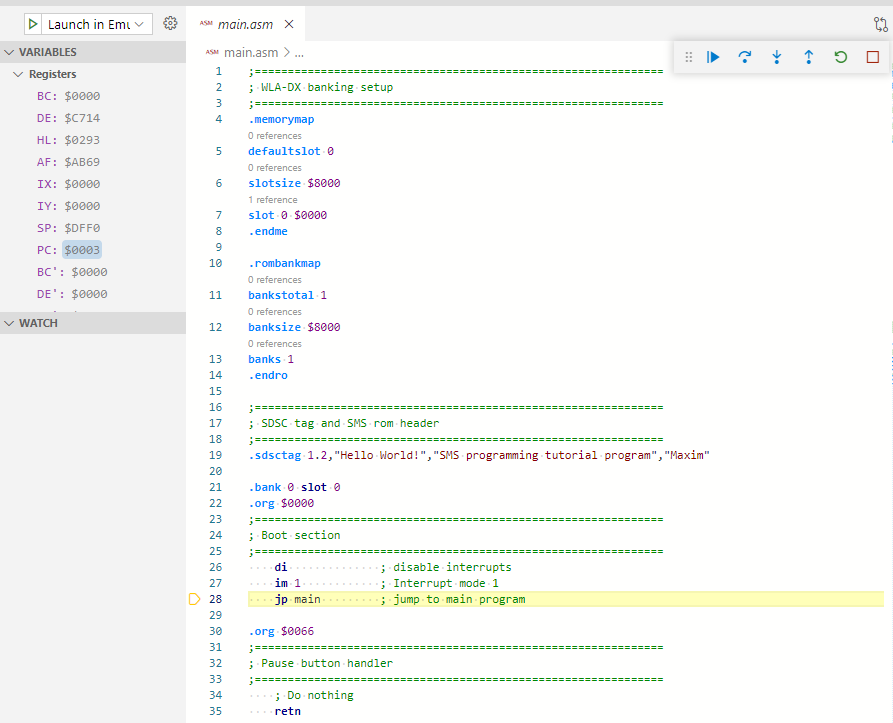
Launch Emulicious externally. Ensure Emulicious Debugger is installed with VS Code as per previous post. Open main.asm and set breakpoints. Press F5. Emulicious debugger should now break into Z80 assembly source code! Step through + investigate register variables, stackframes, access watch window, call stack:

Car Racer (rebooted)
Create C:\CarRacerRebooted or ~/CarRacerRebooted. Copy .vscode folder from above with launch.json and tasks.json. Copy build.bat + build.sh. Don't forget to grant execute permission chmod +x build.sh command.

Download source code. Copy all assets folders with *.inc files to CarRacerRebooted. Copy main.asm file from Racer (rebooted) folder here also. Launch VS Code. Tweak Z80 assembly code as above to be cross platform.

Press Ctrl + Shift + B to execute build script => compile, link and run! Repeat process for all these projects:
 Sega Master System  Astroswab
 Sega Master System  Car Racer [classic]
 Sega Master System  Car Racer [reboot]
 Sega Master System  Digger Ball
 Sega Master System  Digger Chan
 
 Sega Master System  Fairy Forest
 Sega Master System  Jetpac
 Sega Master System  KunKun & KokoKun
 Sega Master System  Mega Man 2
 Sega Master System  Minesweeper
IMPORTANT
For all examples: Launch Emulicious separately first. In VS Code press F5 to debug step through Z80 code!

Commercial Games
Now let us enhance this process to disassemble some commercial games built for the Sega Master System. This way, we may gain insight into the early development process plus be able to hack original source code!

Transbot
Create C:\Transbot or ~/Transbot folder. Copy .vscode folder from above with launch.json and tasks.json files. Copy build.bat + build.sh too. Don't forget to grant execute permission chmod +x build.sh command.

Download Transbot ROM. Launch Emulicious | Open ROM. Tools menu | Debugger | press Ctrl + A to select all disassembled code. Save as Transbot.asm. Update all ".incbin ..." statements using the following utility:

Utility
Download Binary-File-Write utility. Copy both TransBot.asm and TransBot.sms files to input folder. Update the config file | set key="fileName" value to "Transbot". Run BinaryFileWrite.exe. Copy output to Transbot folder.

Launch VS Code. Open Transbot folder. All prior ".incbin..." statements should now refer to binary data files. Press Ctrl + Shift + B to execute build script => compile, link and run! Repeat process for all these projects:
 Sega Master System  After Burner
 Sega Master System  Alien Syndrome
 SG-1000 / SC-3000  Congo Bongo
 SG-1000 / SC-3000  Flicky
 Sega Master System  Golden Axe
 
 SG-1000 / SC-3000  Monaco GP
 Sega Master System  Out Run
 Sega Master System  Shinobi
 Sega Master System  Transbot
 Sega Master System  Wonder Boy
IMPORTANT
For all examples: Launch Emulicious separately first. In VS Code press F5 to debug step through Z80 code!

Flicky
Create C:\Flicky or ~/Flicky folder. Repeat entire process for Transbot as above but with Flicky.sg ROM. Copy the .vscode folder with launch.json and tasks.json files plus build.bat + build.sh. Retreive main.asm + data folder from utility. Press Ctrl + Shift + B to execute build script + press F5 to debug step through Z80 code!

Hack
Use this new setup to hack the original source code! For example, in Flicky you always start at level #1. Wouudn't it be cool to start at any level? Also, wouldn't it be cool to have infinite lives? Let's check it out!

Start level and lives count default values are hardcoded in ROM and loaded into RAM. After debug stepping through Flicky source code we find a piece of code that loads 20x bytes of ROM into RAM on game start:

Bytes $02C3 and $02C4 default to $01; could either of these be start level #1? Byte $02CA defaults to $02; could this be lives left? The corresponding data is loaded in RAM at $C0E7, $C0E8 and $C0EE respectively.

Launch Emulicious. Tools menu | Memory Editor | RAM. Right click $C0E7 | Toggle Watchpoint. Repeat for $C0E8 and $C0EE. Resume code. Play game and die! The value at RAM $C0EE decreases from $02 to $01.

Therefore, RAM $C0EE stores the lives count loaded from ROM $02CA! Replace the original $02 with $FF for "infinite" lives. Repeat process: complete level; see RAM $C0E8 stores start level loaded from ROM $02C4!


Summary
Now that we have a productive Z80 assembler development environment and analyzed some larger projects to better understand the development process we are in a great spot to build our own projects from scratch.

For completeness, we would still like to better understand relationship between Sega Master System source code written in C using the devkitSMS and connect the underlying Z80 assembly code generated accordingly. This will be the topic of the next post.

Sunday, February 14, 2021

Z80 Programming Setup

In 2013, we checked out Sega Console Programming to setup video game development environment for the Sega Master System: an 8-bit video game console based on the Z80 chip. Here we used WLA-DX assembler. Remember, original cartridge-based video games built for 8-bit Sega Retro Gaming consoles were written in pure assembly!

Now we would like to extend our game development environment to Windows and Mac OS/X and Linux for cross platform development and also add better support for automated builds with debugging functionality. Let's check it out!

Assembler
Recommended is the WLA-DX assembler. Git clone the wla-dx repository and follow OS specific instructions.

Windows
Clone wla-dx repository to C:\GitHub\vhelin. Instructions on GitHub describe how to build WLA-LX for Linux whereas WLA-DX can be built for Windows directly from Visual Studio 2017 from the wla-dx\windows folder.
 1. Start | run | cmd  5. Launch WLA DX.sln in Visual Studio 2017
 2. cd C:\GitHub\vhelin  6. Build solution as Release | x86 configuration
 3. git clone https://github.com/vhelin/wla-dx.git  7. WLA DX compiler wla-z80.exe built
 4. cd C:\GitHub\vhelin\wla-dx\windows  8. WLA DX linker wlalink.exe built

After build complete wla-z80.exe and wlalink.exe files can be copied out from newly created Release folder.
If you have followed z88dk Programming Setup tutorial and you already have ConTEXT installed then copy the updated binaries wla-z80.exe and wlalink.exe built from previous step to output folder C:\wlaz80win32.

Also, tweak the original Compile.bat file as all main entry points will now be via main.asm thus align main.o object file during wla-z80 compilation. Finally, it seems -drvs wlalink linker flag is now no longer required.
 echo Compile
 ::"%WLAPATH%wla-z80.exe" -o %1 main.o
   "%WLAPATH%wla-z80.exe" -o main.o %1
 echo Link
 ::"%WLAPATH%wlalink.exe" -drvs linkfile output.sms
   "%WLAPATH%wlalink.exe"       linkfile output.sms


Mac OS/X
Instructions on GitHub describe how to build WLA-LX for Linux whereas WLA-DX can be built for Mac OS/X using brew. Install brew as per instructions. Then follow all instructions here to install wla-dx on Mac OS/X.

Launch Terminal. Enter the following commands below. Accept all prompts to install the latest Xcode tools:
ruby -e "$(curl -fsSL https://raw.githubusercontent.com/Homebrew/install/master/install)" < /dev/null 2> /dev/null
Accept prompt to install the latest Xcode tools
brew install wla-dx
IMPORTANT
During installation, you may encounter the following error: homebrew-core is a shallow clone. To `brew update`, first run: git -C /usr/local/Homebrew/Library/Taps/homebrew/homebrew-core fetch --unshallow

At the terminal, type brew update or brew update --force. If you still get errors then type the following:
git -C /usr/local/Homebrew/Library/Taps/homebrew/homebrew-core fetch --unshallow
brew update --force
brew install wla-dx

Linux
Clone wla-dx repo to ~/GitHub/vhelin. Follow all instructions on GitHub which describes how to build WLA-LX for Linux. Launch Terminal | enter commands. After completion, wla-z80 and wlalink should work universally.
 1. cmake --version  5. mkdir build && cd build
 2. cd ~/GitHub/vhelin  6. cmake ..
 3. git clone https://github.com/vhelin/wla-dx.git  7. cmake --build . --config Release
 4. cd ~/GitHub/vhelin/wla-dx  8. sudo cmake -P cmake_install.cmake


Visual Studio Code
Install VS Code for Windows + Mac OS/X + Linux. Install the following extensions for Z80 ASM development:
 ASM Code Lens  Enables code lens, references, hover info, symbol renaming + assembler outline
 Z80 Assembly  Z80 Assembly support for Visual Studio Code
 Z80 Macro Assembler  Support for Z80 macro-assemblers in Visual Studio Code
 WLA-DX for VSCode  VSCode language support for WLA-DX assembler


Hello World
Download and extract the obligatory "Hello World" to C:\HelloWorld or ~/HelloWorld. Rename file main.asm. Launch VS Code. Open HelloWorld folder. Some things to remember when coding Z80 source cross platform:
  1.  Ensure forward slash "/" used at all times for cross platform development
  2.  Ensure case sensitive folders + files are used at all times for include files
  3.  Ensure carriage returns is used between variables to avoid wla-dx errors

Add build.bat file to compile, link and run souce code on Windows and build.sh file to compile, link and run souce code on Mac OS/X + Linux. Don't forget to grant execute permission chmod +x build.sh command:
 build.bat  build.sh
 @echo off
 cls

 wla-z80 -o main.o main.asm 

 echo [objects] > linkfile
 echo main.o >> linkfile

 wlalink linkfile output.sms

 java -jar C:\SEGA\Emulicious\Emulicious.jar output.sms
 ::output.sms
 @echo off
 clear

 wla-z80 -o main.o main.asm

 echo [objects] > linkfile
 echo main.o >> linkfile

 wlalink linkfile output.sms

 java -jar ~/SEGA/Emulicious/Emulicious.jar output.sms
 #output.sms

Press Ctrl + Shift + B to execute build script. If/when promted to add tasks.json file: Configure Build Task... Create tasks.json file from template | Others. This will create .vscode hidden folder and tasks.json file here. tasks.json
{
    "version": "2.0.0",
    "label": "build",
    "type": "shell",
    "linux": {
        "command": "./build.sh"
    },
    "osx": {
        "command": "./build.sh"
    },
    "windows": {
        "command": "./build.bat"
      },
    "presentation": {"echo": true, "reveal": "always", "focus": false, "panel": "shared", "showReuseMessage": false, "clear": true},
    "group": {"kind": "build", "isDefault": true},
}
Press Ctrl + Shift + B to execute build script => compile, link and run output.sms launched from Emulicious!

IMPORTANT
Assumption Emulicious installed C:\SEGA\Emulicious on Windows or ~/SEGA/Emulicious Mac OS/X + Linux.


Emulicious Debugger
Now that we are able to compile, link and run Z80 assembler directly within Visual Studio Code the final step is to configure debugging. In VS Code, install Emulicious Debugger extension. Click the Run icon and "create a launch.json file". Choose Emulicious Debugger from the drop down. Complete launch.json file accordingly: launch.json
{
    "version": "0.2.0",
    "configurations": [
        {
            "type": "emulicious-debugger",
            "request": "launch",
            "name": "Launch in Emulicious",
            "program": "${workspaceFolder}/output.sms",
            "port": 58870,
            "stopOnEntry": true
        }
    ]
}

Launch Emulicious. Configure the options below. Open Tools menu | Debugger. Configure these options also:
 Tools menu | Remote Debugging | Enabled | CHECK  Debugger | File menu | Load Sources automatically
 Tools menu | Reopen Tools | CHECK  Debugger | Run menu | Suspend On Open

In Visual Studio Code, open main.asm and set breakpoints. Press F5. Emulicious debugger should now break and debug step through Z80 assembly source code! Access register variables, watch window, call stack etc.

Emulicious Debugger II
For completeness, to better understand relationship between Sega Master System source code written in C and Z80 assembly code, let's debug step through "Hello World" program written in C using the devkitSMS.

Follow the Hello World main.c program in devkitSMS Programming Setup. Open C:\HelloWorld folder in VS Code. Modify build.bat script ever so slightly that is add --debug flag to the SDCC commands for example:
  sdcc --debug -c -mz80 --std-sdcc99 main.c
  sdcc --debug -mz80 --no-std-crt0 --data-loc 0xC000 -o output.ihx crt0_sms.rel main.rel SMSlib.lib

Fortunately, we can leverage the same launch.json and tasks.json files as before. Launch Emulicious | Press F5. Emulicious debugger should now break and debug step through C source code! In the external debugger navigate the Z80 assembly code wrapped in C functions via output.map to better understand C / Z80 code!

TROUBLESHOOTING
If you see popup "connect ECONNREFUSED 127.0.0:58870" then this is because Emulicious is not running. Also, if F5 does not launch the debugger from VS Code then click output.sms and choose Debug File icon.


Summary
Now that we have a productive Z80 assembler development environment we are in a great spot to analyze existing Indie game projects directly from the SMS Power! Homebrew section and 8-bit commercial games! This will be the topic of the next post.