Showing posts with label GBDK. Show all posts

Wednesday, November 15, 2023

GBDK Programming Sample

In the previous post, we checked out GBDK Programming Setup. The GBDK is a cross-platform development kit for sm83, z80 and 6502 based gaming consoles including the Nintendo Game Boy and Game Boy Color.

Using the GBDK, it is now possible to write game code using the C language rather than pure Z80 assembly. Therefore, we would like to extend this knowledge and checkout some code samples and homebrew games.
Let's check it out!

Software
Follow all instructions from the previous post: this documents how to setup all the pre-requisite software.
Note: ensure you have downloaded and installed the GBDK devkit and Small Device C Compiler [SDCC].

Examples
As per the previous post, after the GBDK has been downloaded, installed and setup, we should now checkout C:\gbdk\examples\gb to learn more about APIs available in the devkit. Replicate prior Hello World example.

Launch Visual Studio 2015. File | New | Project... | Visual C++ | Win32 | Win32 Project
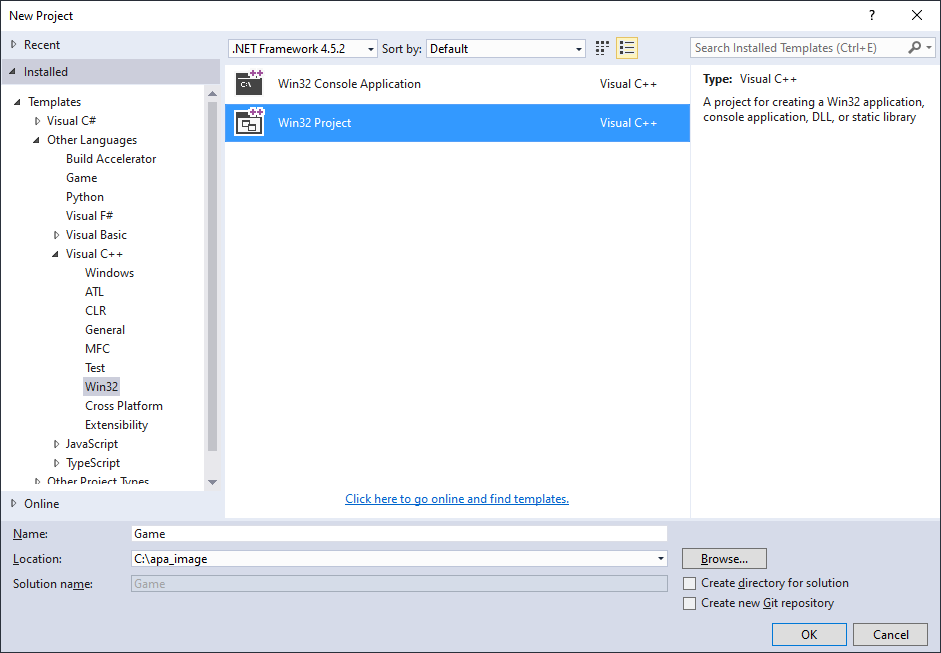
 Name:  Game
 Location:  C:\apa_image
 Create directory for solution  UNCHECKED

Copy over all original folders and files from the corresponding example. Copy from prior Hello World example the hidden .vscode folder and files. Copy also build.bat and align with source compile.bat file. Add relevant files to Visual Studio 2015. Press Ctrl+1 to build, link and run code similar to the prior Hello World example!

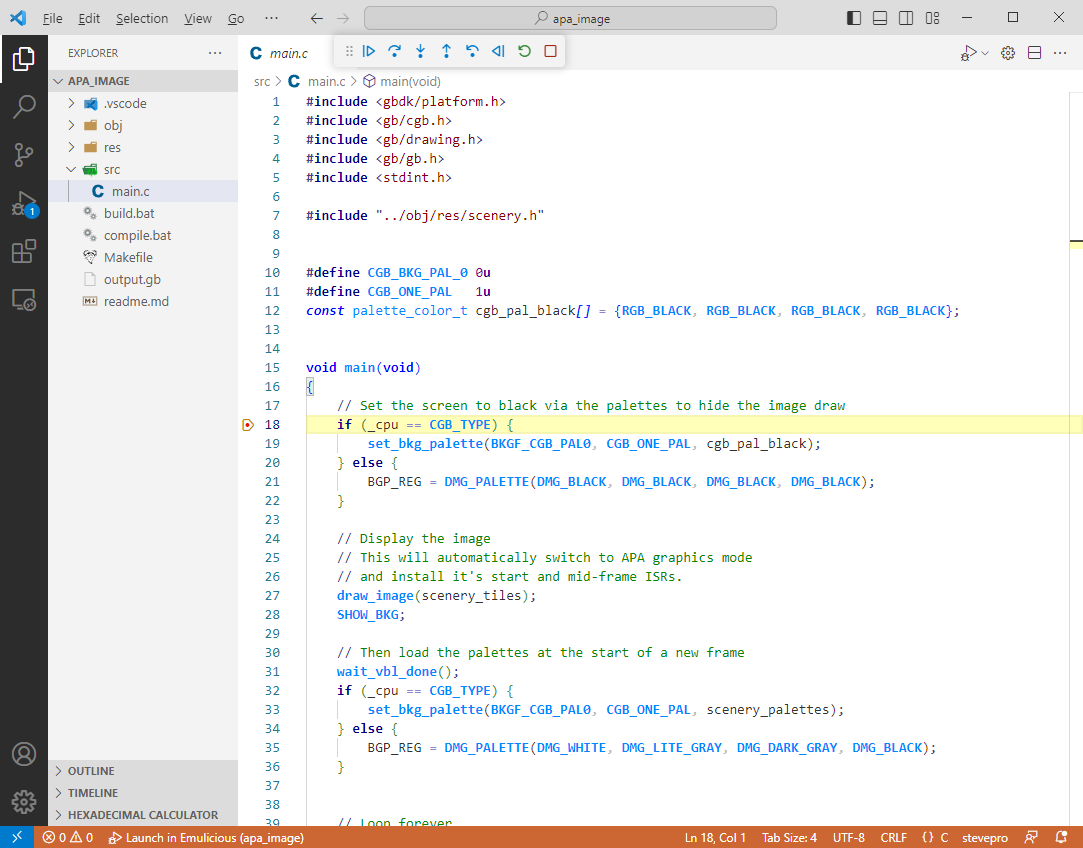
Launch Visual Studio Code. Open example folder. Set breakpoint in main.c. Press F5 to debug step thru code

Here is the complete list:
 CUSTOM: apa_image SOURCE: apa_image
 CUSTOM: banks SOURCE: banks
 CUSTOM: bcd SOURCE: bcd
 CUSTOM: colorbar SOURCE: colorbar
 CUSTOM: comm SOURCE: comm
 CUSTOM: crash SOURCE: crash
 CUSTOM: dscan SOURCE: dscan
 CUSTOM: filltest SOURCE: filltest
 CUSTOM: galaxy SOURCE: galaxy
 CUSTOM: gb-dtmf SOURCE: gb-dtmf
 CUSTOM: gbcompress SOURCE: gbcompress
 CUSTOM: incbin SOURCE: incbin
 CUSTOM: irq SOURCE: irq
 CUSTOM: isr_vector SOURCE: isr_vector
 CUSTOM: large_map SOURCE: large_map
 CUSTOM: lcd_isr_wob SOURCE: lcd_isr_wob
 
 CUSTOM: linkerfile SOURCE: linkerfile
 CUSTOM: metasprites SOURCE: metasprites
 CUSTOM: paint SOURCE: paint
 CUSTOM: ram_function SOURCE: ram_function
 CUSTOM: rand SOURCE: rand
 CUSTOM: rpn SOURCE: rpn
 CUSTOM: scroller SOURCE: scroller
 CUSTOM: sgb_border SOURCE: sgb_border
 CUSTOM: sgb_multiplay SOURCE: sgb_multiplay
 CUSTOM: sgb_pong SOURCE: sgb_pong
 CUSTOM: sgb_sfx SOURCE: sgb_sfx
 CUSTOM: simple_physics SOURCE: simple_physics
 CUSTOM: sound SOURCE: sound
 CUSTOM: temp_minimal SOURCE: temp_minimal
 CUSTOM: temp_subfolder SOURCE: temp_subfolder
 CUSTOM: wav_sample SOURCE: wav_sample

Samples
Gaming Monsters YouTube channel has many samples to teach how to develop your own GameBoy games:

Launch Visual Studio 2015. File | New | Project... | Visual C++ | Win32 | Win32 Project
 Name:  Game
 Location:  C:\SimpleSprites
 Create directory for solution  UNCHECKED

Copy over all original folders and files from the corresponding example. Copy from prior Hello World example the hidden .vscode folder and files. Copy also build.bat and align with source's make.bat file. Add relevant files to Visual Studio 2015. Press Ctrl+1 to build, link and run code similar to the prior Hello World example!

Launch Visual Studio Code. Open example folder. Set breakpoint in main.c. Press F5 to debug step thru code


Here is the complete list:
 CUSTOM: helloworld SOURCE: helloworld
 CUSTOM: simplesprites SOURCE: simplesprites
 CUSTOM: movesprites SOURCE: movesprites
 CUSTOM: background SOURCE: background
 CUSTOM: window SOURCE: window
 CUSTOM: sound SOURCE: sound
 CUSTOM: noise SOURCE: noise
 CUSTOM: simplejumping SOURCE: simplejumping
 CUSTOM: metasprites SOURCE: metasprites
 CUSTOM: spritecollision SOURCE: spritecollision
 CUSTOM: bkgdcollision SOURCE: bkgdcollision
 
 CUSTOM: splashscreens SOURCE: splashscreens
 CUSTOM: fadeeffects SOURCE: fadeeffects
 CUSTOM: keyboard SOURCE: keyboard
 CUSTOM: savename SOURCE: savename
 CUSTOM: colorsprites SOURCE: colorsprites
 CUSTOM: backgrounds SOURCE: backgrounds
 CUSTOM: makingmusic SOURCE: makingmusic
 CUSTOM: spritetricks SOURCE: spritetricks
 CUSTOM: scrolling SOURCE: scrolling
 CUSTOM: debugging SOURCE: debugging
 CUSTOM: platformer SOURCE: platformer

Homebrew
Larold's Jubilant Junkyard is a website/blog/shop which focuses on creating digital products including game development projects and tutorials. The Nintendo GameBoy development tutorial series is very educational.

Follow Larold's Jubilant Junkyard YouTube video channel for additional GBDK 2020 information and content:
 SCREEN resolution  20 x 18 tiles  160 x 144 pixels
 BACKGROUND  32 x 32 tiles  256 x 256 pixels

Compiler flags
 -Wm-yc  GameBoy Color compatible  NB: lowercase c
 -Wm-yC  GameBoy Color only  NB: uppercase C
 -Wm-ys  Super GameBoy compatible  

GameBoy Color Tile Attributes
 Bit 7  priority flag  0: tiles below sprites, 1: tiles above sprites
 Bit 6  vertical flip  0: tiles normal, 1: flipped vertically
 Bit 5  horizontal flip  0: tiles normal, 1: flipped horizontally
 Bit 4  not used  
 Bit 3  character bank specification  0: tiles at bank0, 1: tiles at bank1
 Bit 2  see bit 0  
 Bit 1  see bit 0  
 Bit 0  bits 0-2  indicate tile color palette assignment

Launch Visual Studio 2015. File | New | Project... | Visual C++ | Win32 | Win32 Project
 Name:  Game
 Location:  C:\AlleywayGameboy
 Create directory for solution  UNCHECKED

Copy over all original folders and files from the corresponding example. Copy from prior Hello World example the hidden .vscode folder and files. Copy also build.bat and align with source's make.bat file. Add relevant files to Visual Studio 2015. Press Ctrl+1 to build, link and run code similar to the prior Hello World example!


NOTE: ensure that the GBDK header files are included for Intellisense: Right click project | Properties |
Configuration Properties | C/C++ | General | Additional Include Directories | %GBDK_WIN%/include; $(SolutionDir)/headers/gen; $(SolutionDir)/headers/main; %(AdditionalIncludeDirectories).

Here is the complete list:
 CUSTOM: alleyway  SOURCE: alleyway
 CUSTOM: flappy-bird  SOURCE: flappy-bird
 
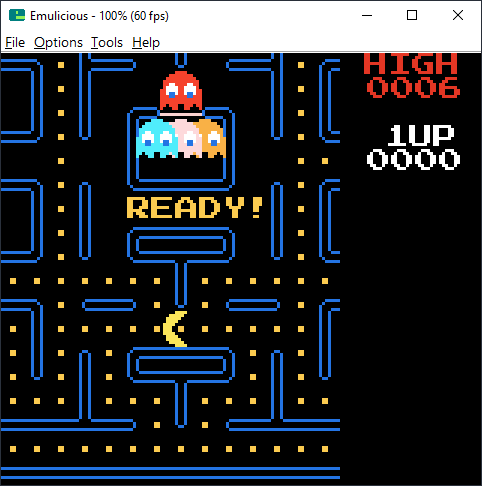
 CUSTOM: pacman  SOURCE: pacman
 CUSTOM: space-invaders  SOURCE: space-invaders

Summary
Armed with all this knowledge, we are now in an excellent position to build complete video games for the Nintendo Game Boy and Game Boy Color. In the interim, we see the GameBoy Competition 2023 is here!

Friday, September 15, 2023

GBDK Programming Setup

In 2017, we checked out devkitSMS Programming Setup to build 8-bit video games for Sega Master System. Here we installed all the tools required including a powerful emulator: Emulicious to test the video games.

Emulicious is a free multi-system emulator popular for Sega Master System and Sega Game Gear games but can also play Nintendo Game Boy and Game Boy Color games. Therefore, let's leverage Sega Master System development setup to build and test games for Nintendo Game Boy and Game Boy Color using the GBDK.

Let's check it out!

GDDK
The GBDK is a cross-platform development kit for sm83, z80 and 6502 based gaming consoles including the Nintendo Game Boy and Game Boy Color. It includes libraries, toolchain utilities and SDCC C compiler suite.

Software
Follow all instructions from the previous post: this documents how to setup the pre-requisite software.

Here is a summary of all required software to be installed:
 Name Version
 C IDE Editor Visual Studio 2015
 C IDE Editor Visual Studio Code
 Cross compiler Small Device C Compiler
 
 Name Version
 Make files Cygwin
 Emulators Emulicious, BGB
 Debugger Emulicious Debugger
Note: this post documents how to download and install SDCC v4.1.0 on both Windows and Linux.

GBDK
Navigate to the gbdk-2020 repository on github: gbdk-2020 has full instructions here. Download the latest release from gbdk-2020 archive e.g. gbdk-4.1.1 or git clone latest source code. Extract code into C:\gbdk.

Setup the following environment variable for GBDK_WIN as it can be useful throughout GBDK development. Add the following one environment variable: System | Advanced system settings | Environment Variables:
 Variable  Value  Description
 GBDK_WIN  C:\gbdk  Windows path format


Example
As an example, let's write a simple program that prints Hello World to the screen using the GameBoy DevKit. Create new directory: C:\HelloWorld. Create new file main.c. Copy in the following code to print Hello World.

main.c
#include <gb/gb.h>
#include <stdio.h>

void main()
{
	printf( "HELLO WORLD" );
}

Build
Manually compile and link the Hello World program. Launch command prompt: Start | Run | cmd.


Change directory cd C:\HelloWorld. Next, execute the following 2x commands (in bold):
 ACTION  COMMAND  OUTPUT
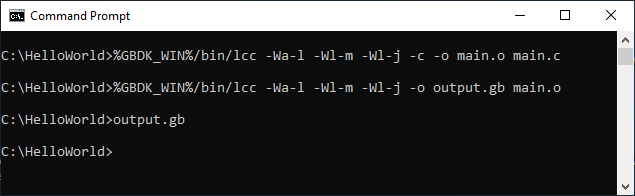
 Compile   %GBDK_WIN%/bin/lcc -Wa-l -Wl-m -Wl-j -c -o main.o main.c  main.o
 Link  %GBDK_WIN%/bin/lcc -Wa-l -Wl-m -Wl-j -o output.gb main.o  output.gb

Finally, type output.gb. The Hello World program should launch in the Emulicious emulator.
Congratulations! You have just written your first test program using the GameBoy DevKit.

IMPORTANT
If game does not initially render correct then select Options menu | System | Game Boy or Game Boy Color.

Automate
Let's automate the build process: create C:\HelloWorld\build.bat script file that contains the commands:
@echo off
%GBDK_WIN%/bin/lcc -Wa-l -Wl-m -Wl-j -c -o main.o main.c
%GBDK_WIN%/bin/lcc -Wa-l -Wl-m -Wl-j -o output.gb main.o
output.gb

Visual Studio 2015
Similar to Sega Master System development using devkitSMS, setup Visual Studio 2015 as per instructions here. Also, follow instructions here to connect Ctrl+1 hot key to automatically compile, link and run code.

Launch Visual Studio 2015. File | New | Project... | Visual C++ | Win32 | Win32 Project
 Name:  HelloWorld
 Location:  C:\
 Create directory for solution  UNCHECKED

 Application type:  Console application
 Additional options:  Empty project CHECKED

Navigate to C:\HelloWorld. Add existing: main.c and build.bat at the same folder level as HelloWorld.sln.


Finally, ensure that the GBDK header files are included for Intellisense: Right click project | Properties |
Configuration Properties | C/C++ | General | Additional Include Directories | %GBDK_WIN%/include.

Press Ctrl+1 to build, link and run!


Visual Studio Code
Similar to Sega Master System development using devkitSMS, setup Visual Studio Code as per instructions here. Add hidden .vscode folder + include tasks.json and launch.json files beneath to build + debug code.

Launch Visual Studio Code. Open folder C:\HelloWorld. Add the .vscode folder the following files beneath:

c_cpp_properties.json
{
  "configurations": [
    {
      "name": "stevepro",
      "intelliSenseMode": "clang-x64",
      "includePath": [
        "${env:GBDK_WIN}/include"
      ],
      "cStandard": "c11",
      "cppStandard": "c++17",
      "browse": {
        "path": [
          "${workspaceFolder}"
        ],
        "limitSymbolsToIncludedHeaders": true,
        "databaseFilename": ""
      }
    }
  ],
  "version": 4
}

tasks.json
{
    "version": "2.0.0",
    "label": "build",
    "type": "shell",
    "windows": {
        "command": "./build.bat"
      },
    "presentation": {"echo": true, "reveal": "always", "focus": false, "panel": "shared", "showReuseMessage": false, "clear": true},
    "group": {"kind": "build", "isDefault": true},
}

launch.json
{
    "version": "0.2.0",
    "configurations": [
        {
            "type": "emulicious-debugger",
            "request": "launch",
            "name": "Launch in Emulicious",
            "program": "${workspaceFolder}/output.gb",
            "port": 58870,
            "stopOnEntry": false,
        }
    ]
}

Open main.c. Set breakpoint. Press Ctrl + Shift + B to build source code. Press F5 to debug step thru code:


In Emulicious, choose Tools menu | Debugger to be able to fully debug step thru the Z80 assembly code:


Summary
Now the GBDK has been downloaded, installed and setup, we should checkout C:\gbdk\examples\gb to learn more about the APIs available in the devkit + checkout some code samples and complete homebrew games. This will be the topic of the next post.